How to Track a Competitor’s New Products on Amazon
Track what a competitor adds on Amazon: choose sellers to follow, save storefront snapshots, compare ASIN lists in Excel and spot new products and brands.
Amazon has no alert for when a seller adds new products. To track a competitor, save the list of ASINs in its storefront, check the storefront again at regular intervals and compare the two lists: ASINs that are new on the list are the products it added. Amazon’s New Releases lists show new products in a category, whoever sells them.
Why track competitors’ new products
- Product ideas: a seller who does well in your niche tests products you have not found yet.
- New brands: a wholesale competitor adding a brand is a sign the brand works for resellers (Amazon wholesale: how to find brands to sell).
- New categories: several new products in one category show where a competitor is moving.
- Removed products: products that disappear can show what did not work, or what ran out.
Step 1 · Choose who to follow
Pick a few sellers who matter to you:
- sellers who offer the same products as you (how to find who sells a product),
- wholesale sellers with many brands in your categories,
- sellers who keep appearing when you research a niche.
For each one, note the seller ID and the marketplace (Amazon seller ID). The ID stays the same when the store changes its name.
Step 2 · Take a first snapshot
Open the seller’s storefront and go through its products department by department (how to find all products sold by an Amazon seller). Save every ASIN in a spreadsheet with the date.
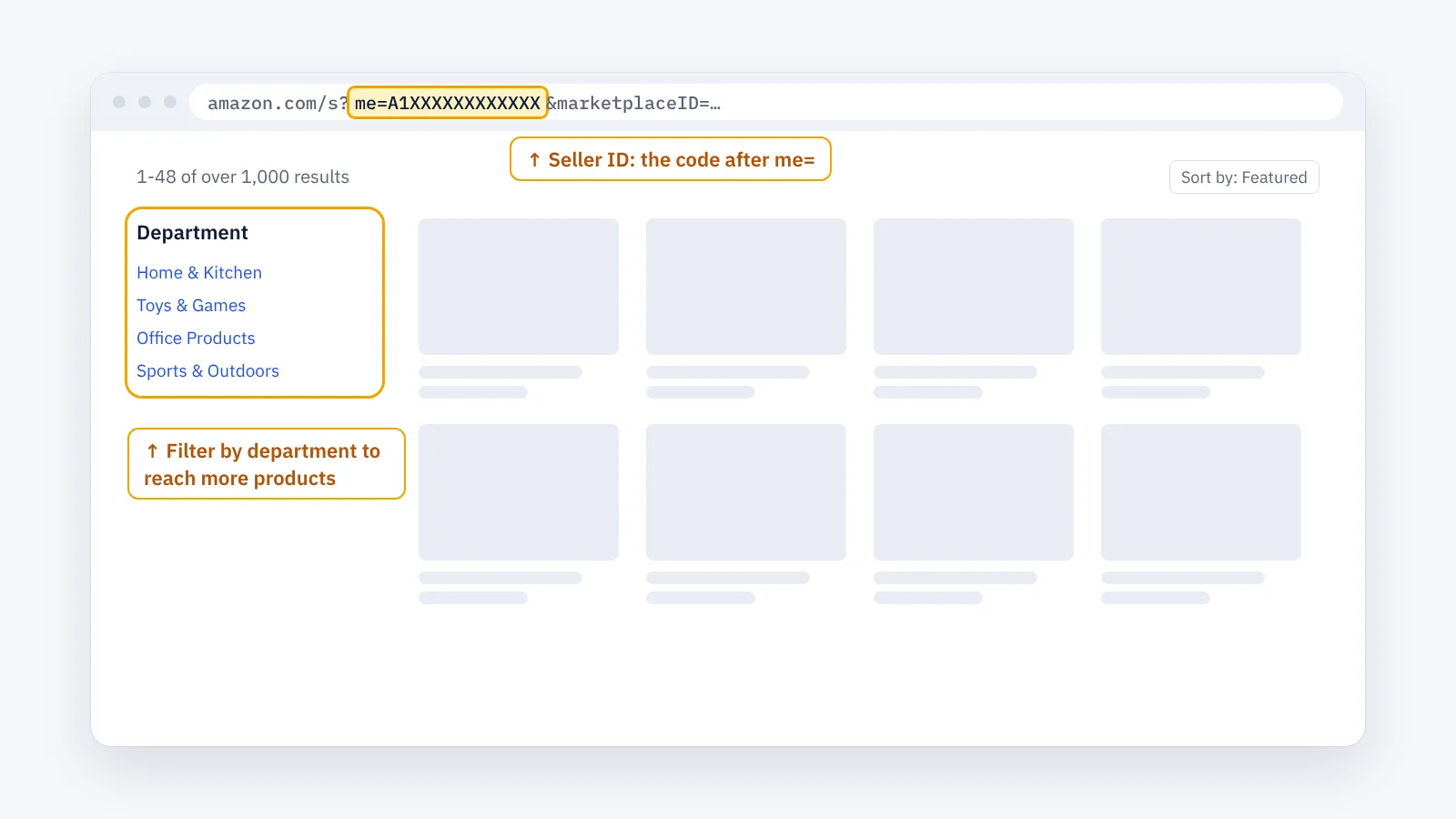
In a large store, Amazon shows a limited number of pages per list, so filter by department and category to reach more products. Write down which departments you covered, so the next snapshot covers the same ones.
Step 3 · Repeat and compare
Take the same snapshot again, for example every week. Then compare the two lists. In Excel or Google Sheets, with last week’s ASINs in column A of a sheet named Old and this week’s ASINs in column A of the current sheet:
=IF(COUNTIF(Old!A:A, A2)=0, "NEW", "")
Every row marked NEW is a product that was not in the store last time. Swap the sheets to find products that disappeared.
Step 4 · Look at what is new
For each new product, check:
- its Sales Rank and category (Amazon Sales Rank),
- how many sellers it has, who holds the Featured Offer, and whether it is FBA or FBM,
- its brand: is it new for this seller?
Then decide whether it is worth researching for yourself (Amazon product research).
Category signals: New Releases
Amazon’s New Releases lists (also called Hot New Releases) show popular new products in each category. They catch launches in your niche even from sellers you do not follow. Check the lists for your categories regularly.
What to look for over time
- A burst of products in one category: a competitor is moving into it.
- A new brand across several products: the seller has opened an account with that brand.
- Products that disappear and come back: often stock running out, not a failed product.
- Many products disappearing at once: a brand may have stopped working with resellers, or the seller may have lost access to a category.
Limits of the manual method
- It takes time: one large store can mean hundreds of pages per snapshot.
- Snapshots must cover the same departments, or the comparison misleads.
- Some products are only shown for certain delivery locations.
The faster way: Store Refresh with ENSKOM
ENSKOM’s Store Researcher is a Chrome extension that keeps the stores you follow up to date in your own browser:
- Store Scans: collect a store’s products category by category, with a report of what each scan covered.
- Store Refresh: checks scanned stores again in the background to find what they add later. It runs at a low share and never slows your research.
- Pay only for what’s new: each product found in that store for the first time uses one credit; products found there before are free.
- Only what is new to you: download just the ASINs that were not on your computer before.
The Free plan includes every research feature.
Guides: Store Scans · Your Sellers list · Seller Discovery
FAQ
Can Amazon notify me when a seller adds a product?
No. Amazon has no alert for this. You need to check the storefront again, by hand or with a tool.
How often should I check a competitor?
For most sellers, once a week is enough. Check more often in fast-moving categories or during busy seasons.
Is it allowed to track competitors on Amazon?
Looking at public product pages and storefronts is what every buyer can do. Use what you learn for your own research.
Why did a product disappear from a storefront?
Often the seller ran out of stock. It may also have stopped selling the product, or lost access to its category or brand.
What is the difference between a store snapshot and New Releases?
A snapshot shows what one seller added. New Releases shows popular new products in a category, from any seller.