ASIN Research: How to Find Related Products on Amazon
ASIN research step by step: find a product’s exact Amazon category, list the products in it and check their price, sellers and sales rank.
ASIN research means starting from one product’s ASIN and finding the products around it on Amazon: the ones in the same exact category, with their price, sellers and Best Sellers Rank. You can do it by hand from the product page’s category path, or let a tool read those pages for you and grade how close each product is.
What ASIN research is for
Amazon sellers use ASIN research to:
- Find competitors of a product they already sell.
- Find new products to source in a category they know.
- Size up a niche before they buy stock: how many products, at what prices, with how many sellers.
- Find wholesale leads: the products, and later the sellers, in a category.
Step 1 · Get the ASIN
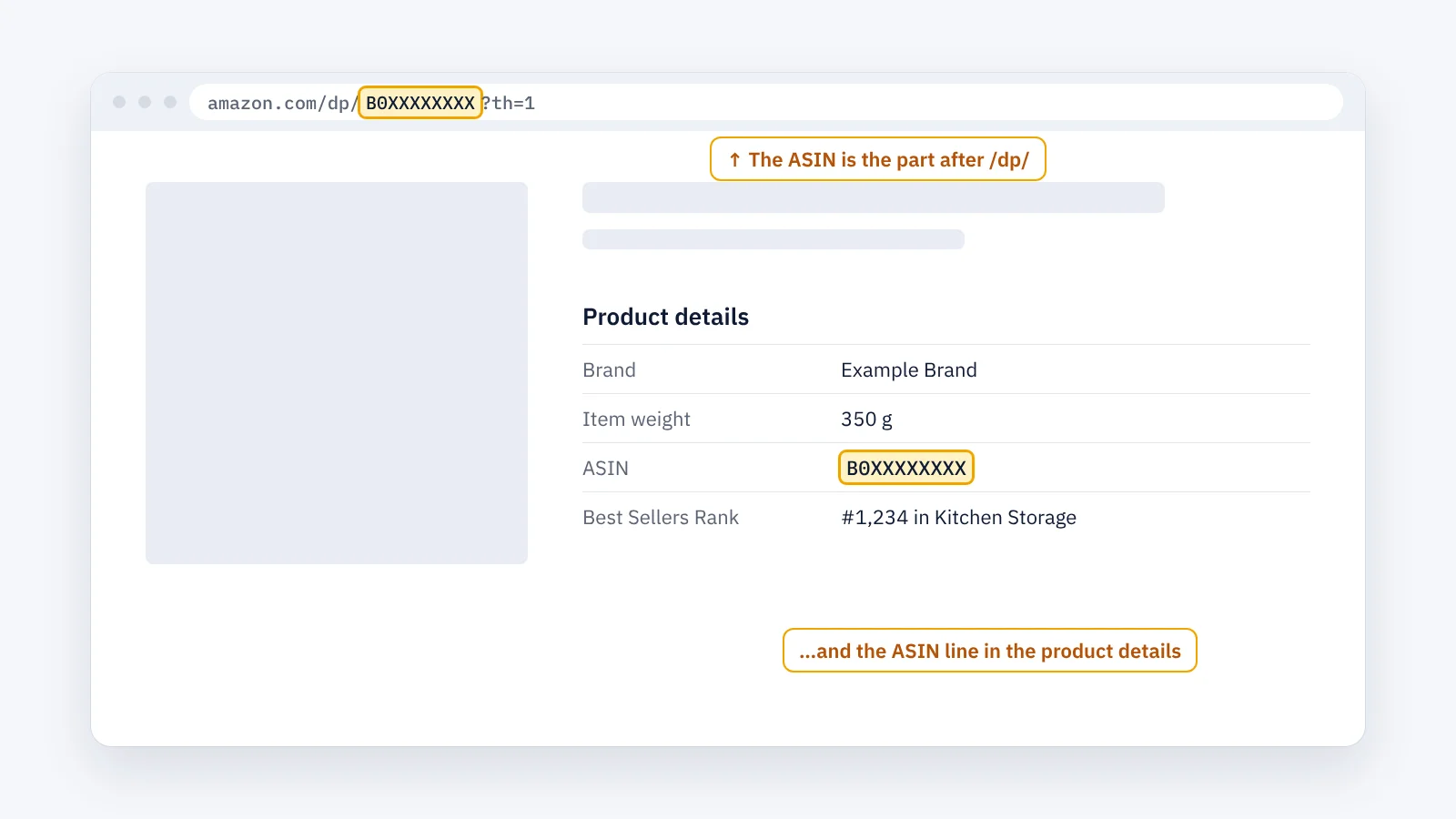
Every product on Amazon has an ASIN (Amazon Standard Identification Number), a 10-character code. You find it in two places:
- In the address bar: the part after
/dp/, for exampleamazon.com/dp/B0XXXXXXXX. - On the product page: under Product information or Product details, in the line ASIN.
For books, the ASIN is usually the ISBN-10. More on this: What is an ASIN and how to find it.
Step 2 · Find the exact category
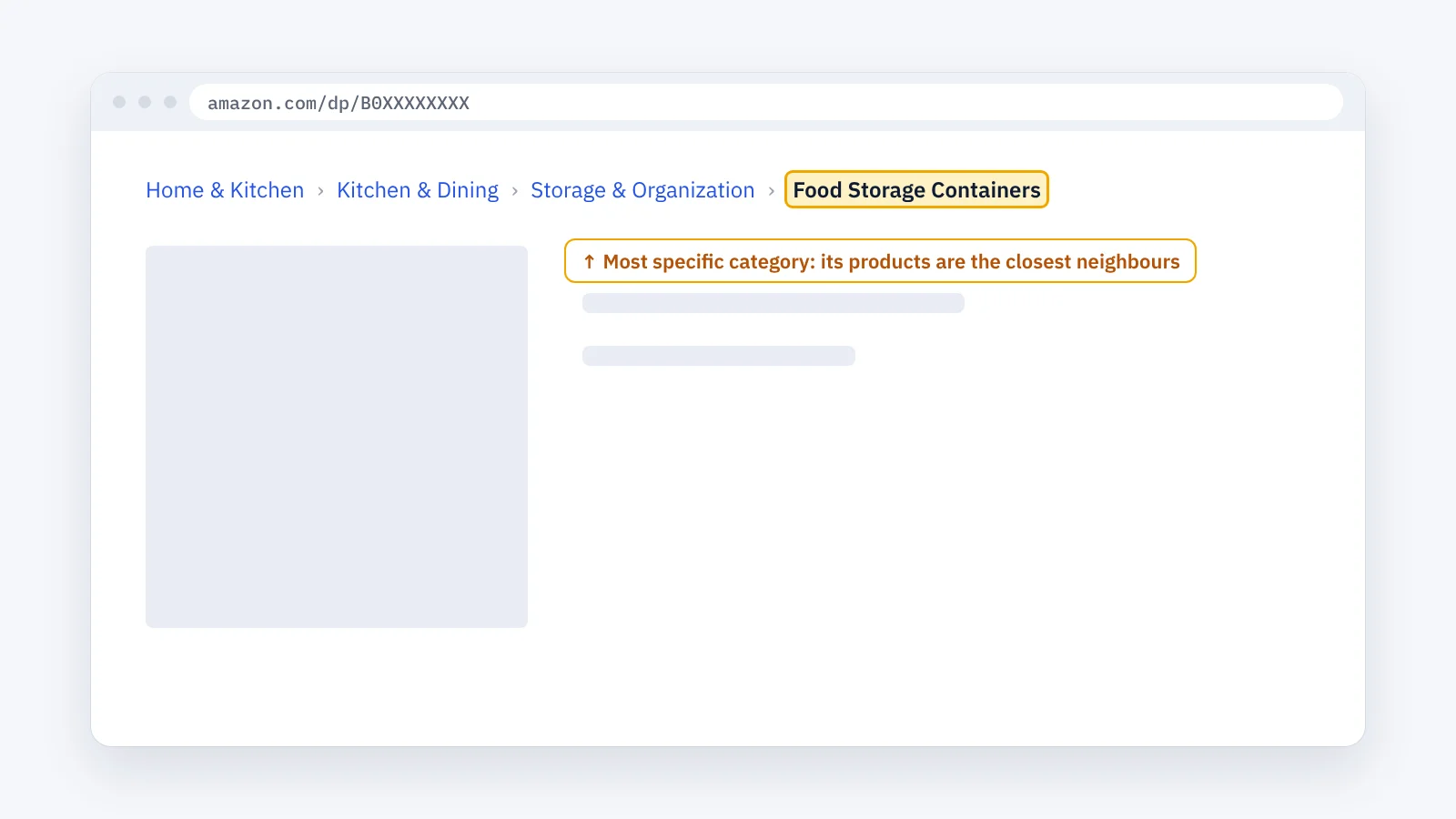
At the top of the product page, Amazon shows the category path (the “breadcrumb”), from the broadest category to the most specific one. The last, most specific category is the one that matters: the products in it are the product’s closest neighbours.
The Best Sellers Rank line in the product details also names one or more categories. They are often the same as the last category of the path, but not always.
Step 3 · Browse that category
Click the last category in the path. Amazon lists the products in it; you can sort and filter the list.
Two things to know:
- Amazon shows a limited number of pages for a list. In a large category you cannot reach every product by scrolling.
- The list depends on where you shop: prices and availability change with the marketplace and the delivery location.
Step 4 · Check each product
For each product worth a closer look, open its page and note:
- Price and the Featured Offer (the offer in the buy box).
- Number of sellers (Other sellers on Amazon).
- Fulfillment: FBA (Ships from Amazon) or FBM (shipped by the seller).
- Best Sellers Rank in its category.
Step 5 · Repeat and keep a list
Do the same for each product you start from, and keep everything in one spreadsheet. Products found from several starting ASINs appear more than once: remove the duplicates.
This works, but it is slow: one product’s category can hold hundreds of products, and each needs its own page.
The faster way: ASIN research with ENSKOM
ENSKOM is a Chrome extension that does these steps in your own browser:
- Paste your source ASINs, up to 10,000 at once, and choose the marketplace.
- ENSKOM opens each product page on Amazon to confirm its exact category, then collects the products in it.
- Every result is graded by closeness: Very Strong shares every specific category of your ASIN, Strong most of them, Related at least one. A product found by several source ASINs appears once.
- Detailed Research adds the current price, sellers, Featured Offer, fulfillment (FBA or FBM) and Sales Rank, as Amazon shows them. A value Amazon does not show is marked Unknown, never guessed.
- Copy the ASINs or export them to Excel.
The Free plan includes every research feature.
Guides: Start a new research · Read your results
Tips
- Start from products you know, such as the ones you already sell: the results stay relevant.
- Use several source ASINs from the same niche: you see the category from more angles.
- Set the delivery location of the marketplace you sell in, so prices match what your buyers see.
- Don’t judge a product by one Sales Rank: it changes during the day. Check it more than once.
FAQ
What does ASIN stand for?
Amazon Standard Identification Number: the 10-character code Amazon gives every product.
Is an ASIN the same in every marketplace?
Often the same product has the same ASIN in several marketplaces, but not always. Check it in each marketplace you research.
Do I need an Amazon seller account for ASIN research?
No. ASIN research uses the public product pages anyone can open. ENSKOM needs a free ENSKOM account.
How many related products can one ASIN have?
It depends on the size of its category. ENSKOM keeps up to 500 Very Strong, 500 Strong and 1,000 Related results per source ASIN and marks a group that reaches its limit.