What Is an ASIN and How to Find It on Amazon
What an Amazon ASIN is, where to find it on a product page or in the app, how it differs from UPC, EAN, SKU and FNSKU, and how to collect many at once.
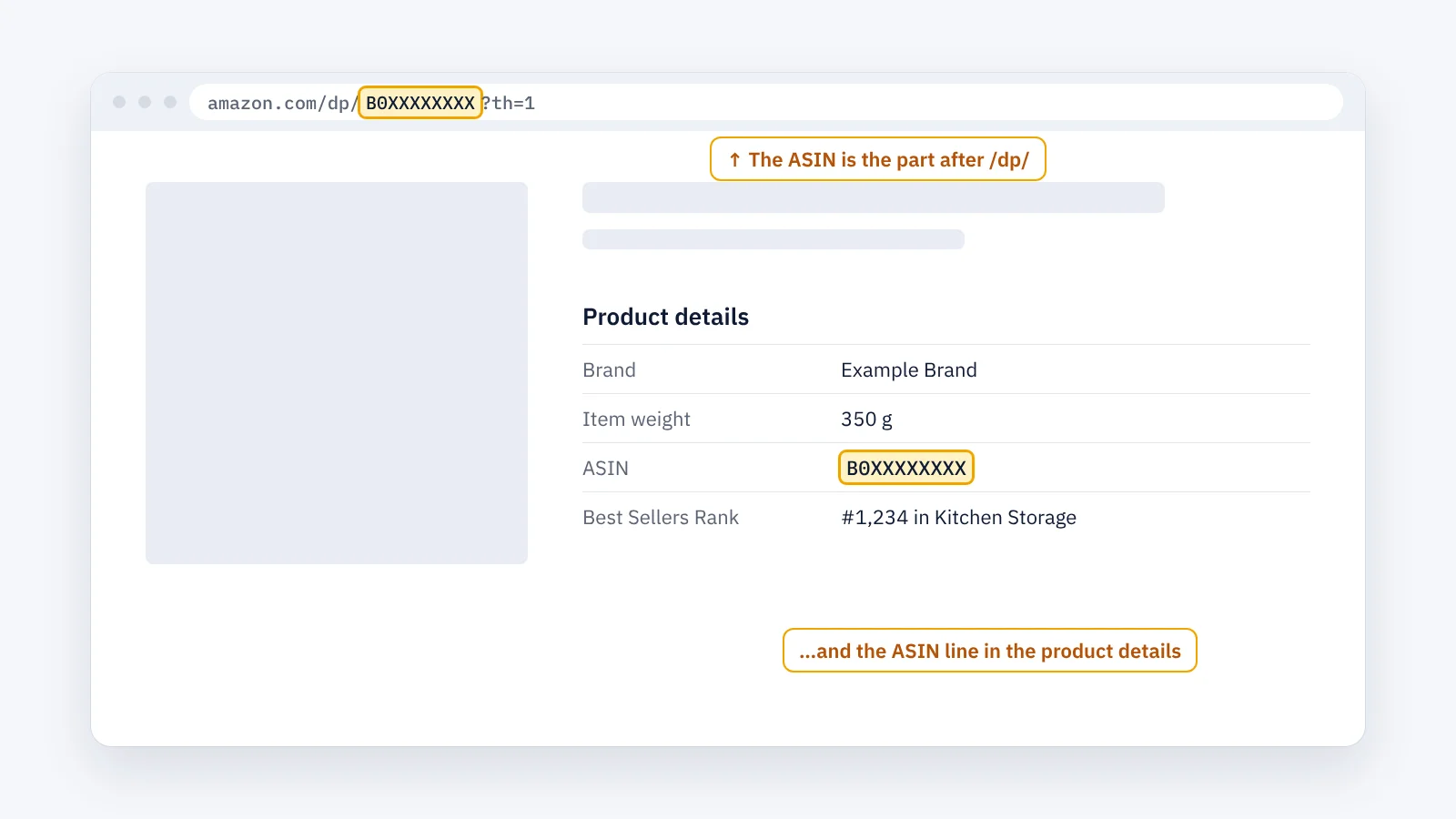
An ASIN (Amazon Standard Identification Number) is the 10-character code Amazon gives every product in its catalog, for example B0XXXXXXXX. To find it, look at the address of the product page, right after /dp/, or at the ASIN line under Product details. For books, the ASIN is usually the ISBN-10.
What an ASIN is
- 10 characters, letters and digits. Most product ASINs start with
B0. For books, the ASIN is usually the 10-digit ISBN. - Amazon assigns it when a product is first added to the catalog. Sellers do not choose it.
- One product page, one ASIN. Every seller of the same product sells on the same ASIN. That is why one product page can show many offers.
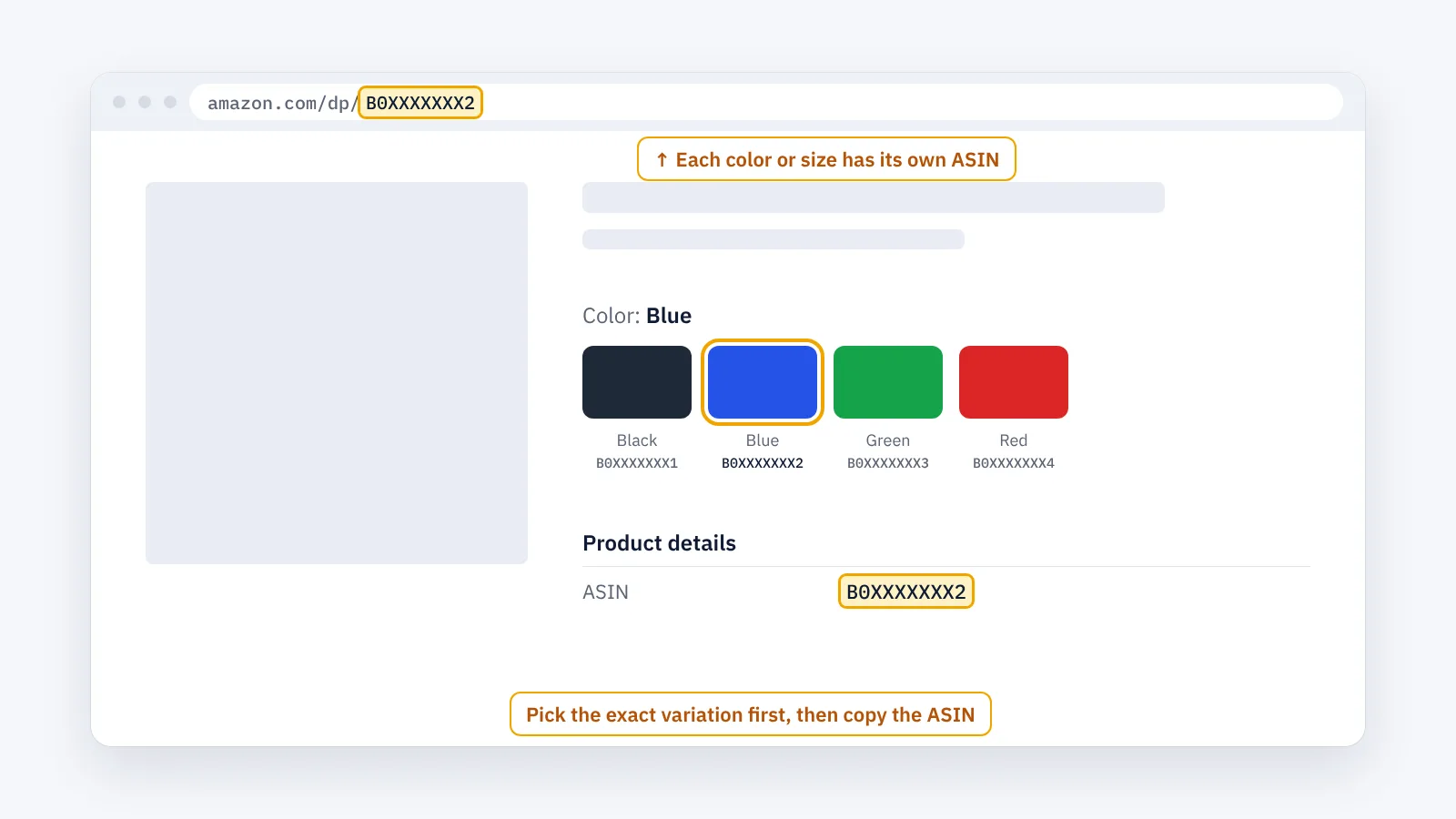
- Each variation has its own ASIN. A T-shirt in four colours and three sizes has a separate ASIN for each colour and size. They are grouped under a parent ASIN, which you cannot buy directly.
How to find an ASIN on a computer
1. In the address bar
Open the product page and look at the address. The ASIN is the 10 characters after /dp/ or /gp/product/:
amazon.com/dp/B0XXXXXXXXamazon.com/Product-Name/dp/B0XXXXXXXX/ref=…amazon.com/gp/product/B0XXXXXXXX
Everything after the next / or ? is tracking information. You can ignore it.
2. In the product details
Scroll down to Product information or Product details. The name and the layout change with the category: some pages show a table, others a list. Find the line ASIN.
3. Choose the variation first
When you pick another colour or size, the ASIN in the address and in the product details changes. Select the exact variation you mean, then copy the ASIN.
How to find an ASIN in the Amazon app
In the Amazon Shopping app, open the product and scroll to the product details; the ASIN is usually listed there. If you can’t see it, tap Share, copy the link and open it in a browser: the address shows /dp/ followed by the ASIN.
How to open a product from its ASIN
- Search for it: paste the ASIN into Amazon’s search box.
- Open it directly: type the marketplace address,
/dp/and the ASIN, for exampleamazon.com/dp/B0XXXXXXXXoramazon.de/dp/B0XXXXXXXX.
If the page does not open in a marketplace, the product is not sold there, or it is sold there under a different ASIN.
ASIN, UPC, EAN, ISBN, SKU and FNSKU
| Code | Given by | What it identifies |
|---|---|---|
| ASIN | Amazon | A product page in an Amazon marketplace |
| UPC / EAN | The brand, through GS1 | The product’s barcode, the same in every shop |
| ISBN | ISBN agencies | A book edition; for books the ASIN is usually the ISBN-10 |
| SKU | Each seller | The seller’s own stock code; it differs from seller to seller |
| FNSKU | Amazon | The label on FBA units that ties them to one seller’s offer |
In short: the barcode belongs to the product, the ASIN to Amazon’s page for it, and the SKU and FNSKU to one seller.
Is the ASIN the same in every marketplace?
Often, the same product has the same ASIN in several marketplaces, but not always. A product can also be missing from a marketplace. When you research more than one marketplace, check the ASIN in each of them.
Once you have an ASIN, you can find the products around it in its exact category: ASIN research: how to find related products on Amazon.
The faster way: collect ASINs with ENSKOM
Copying one ASIN takes seconds. Collecting hundreds, such as every product around yours or everything a store sells, takes hours. ENSKOM is a Chrome extension that collects them in your own browser:
- ASIN Researcher: start from your ASINs and get the products in their exact Amazon categories, graded Very Strong, Strong or Related.
- Store Scans: collect the ASINs a seller lists in its storefront, category by category. Each scan reports what it covered.
- My ASINs: every ASIN your research and Store Scans found, listed once. Filter it, copy the ASINs or export them to CSV or Excel.
The Free plan includes every research feature.
Guides: Getting started · Start a new research · Store Scans
FAQ
Can two products have the same ASIN?
No. In one marketplace, one ASIN is one product page. Different sellers of the same product share that ASIN.
Can an ASIN change?
The ASIN of a product page does not change. Amazon sometimes merges duplicate pages of the same product; one of the ASINs may then lead to the other page.
Do I need my own ASIN to sell on Amazon?
Only for a product that is not in the catalog yet: Amazon creates the ASIN when you create the listing. If the product is already on Amazon, you add your offer to its existing ASIN.
How do I find the ASIN from a barcode?
Type the UPC or EAN number into Amazon’s search box. If the product is listed with that barcode, it usually appears in the results. Sellers can also search by barcode when they add a product in Seller Central.
Is the ASIN the same as the ISBN?
For most books, yes: the ASIN is the ISBN-10. Other products have no ISBN, so Amazon gives them an ASIN that usually starts with B0.