Amazon Apply to Sell: Gated Categories and Brands
Amazon Apply to Sell explained: which categories, brands and products are gated, how to check before you buy stock and what approval usually asks for.
Some Amazon categories, brands and products are “gated”: you must Apply to sell and get Amazon’s approval before you can list them. To check, look the product up in Seller Central as if you were adding it. If you see Listing limitations apply or an Apply to sell button, approval is needed. Gating differs by marketplace and changes over time, so always check before you buy stock.
What gated and Apply to sell mean
Amazon restricts who can sell some products to protect buyers from counterfeit, unsafe or poor-quality items. A restriction can apply at several levels:
- A whole category, in a given marketplace.
- A subcategory inside an otherwise open category.
- A brand, in every category it appears in.
- A single product (ASIN).
One product can be affected by more than one level. For example, a toy from a well-known brand can need both category and brand approval.
Gating is different from restricted or prohibited products, such as some regulated or dangerous items, which follow their own rules. FBA also reviews dangerous goods (hazmat) separately.
Which products often need Apply to sell
Amazon publishes the current list in Seller Central, under the help pages for categories and products that require approval, for each marketplace. Seller guides often name categories such as:
- collectibles (coins, sports and entertainment collectibles) and fine art,
- fine jewelry and watches,
- music and video (DVD, Blu-ray),
- grocery and some health and personal care products,
- automotive and powersports parts.
Treat this as a starting point, not a list to rely on: it differs by marketplace, and Amazon opens and closes categories over time. Many brands are gated in every marketplace, including well-known brands in open categories.
How to check Apply to sell before you buy
- Sign in to Seller Central for the marketplace you sell in.
- Go to Catalog › Add Products and search for the product by ASIN, barcode or name.
- Look at the result:
- you can list it → no approval needed today,
- Listing limitations apply or Apply to sell → approval needed,
- the product cannot be sold → it is restricted for you.
- Repeat for every product on your list. Approval for one product of a brand does not always cover all of them.
Do this before you order. The most expensive mistake in arbitrage and wholesale is buying stock you cannot list.
What Apply to sell usually asks for
The exact requirements are shown when you apply, and they differ by category, brand and marketplace. Sellers’ guides commonly mention:
- a Professional selling plan and good account health,
- commercial invoices from the manufacturer or an authorized distributor, recent, for a reasonable quantity, with your business name and address matching your seller account,
- for some brands, a letter of authorization from the brand,
- for some categories, product documents such as safety or compliance certificates.
Some sellers see an approval button that works at once; others go through a review that can take days. Retail receipts are generally not accepted, and an altered invoice can cost you your selling account.
How Apply to sell fits into your research
- Product research: check approval together with demand, price and competition (Amazon product research).
- Wholesale: ask the brand or distributor whether they can provide invoices that work for Amazon approval (Amazon wholesale: how to find brands to sell).
- Arbitrage: gated brands are a common reason why a cheap deal cannot be resold (arbitrage, wholesale and private label compared).
- Store research: when you go through a competitor’s storefront, skip the departments you cannot sell in.
The faster way: skip what you can’t sell with ENSKOM
ENSKOM is a Chrome extension that reads public Amazon pages in your own browser. It does not check your Amazon approvals, but it helps you spend your time on what you can sell:
- Category presets: leave out whole departments, per marketplace, from your Store Scans, for example departments you are not approved in.
- Store Researcher: find the sellers behind your ASINs and collect their storefronts, category by category.
- Export: copy the ASINs or export them to CSV or Excel, then check them in Seller Central.
The Free plan includes every research feature.
Guides: Category presets · Store Scans · Seller Discovery
FAQ
What does Apply to sell mean on Amazon?
It is the button Seller Central shows when a product, brand or category is gated for you. Clicking it starts Amazon’s approval request; until you are approved, you cannot list the product.
What does “ungated” mean?
It means you have Amazon’s approval to sell in a gated category or brand. Sellers say they got “ungated” in it.
Is the list of gated categories the same everywhere?
No. Each marketplace has its own list, and Amazon changes it over time. Check the help pages in Seller Central for your marketplace.
Can I sell a gated brand if I bought it in a shop?
Usually not. Amazon generally asks for invoices from the manufacturer or an authorized distributor; shop receipts are not enough.
Does approval in one marketplace count in another?
Not necessarily. Check each marketplace separately.
Can I see on the product page whether a product is gated?
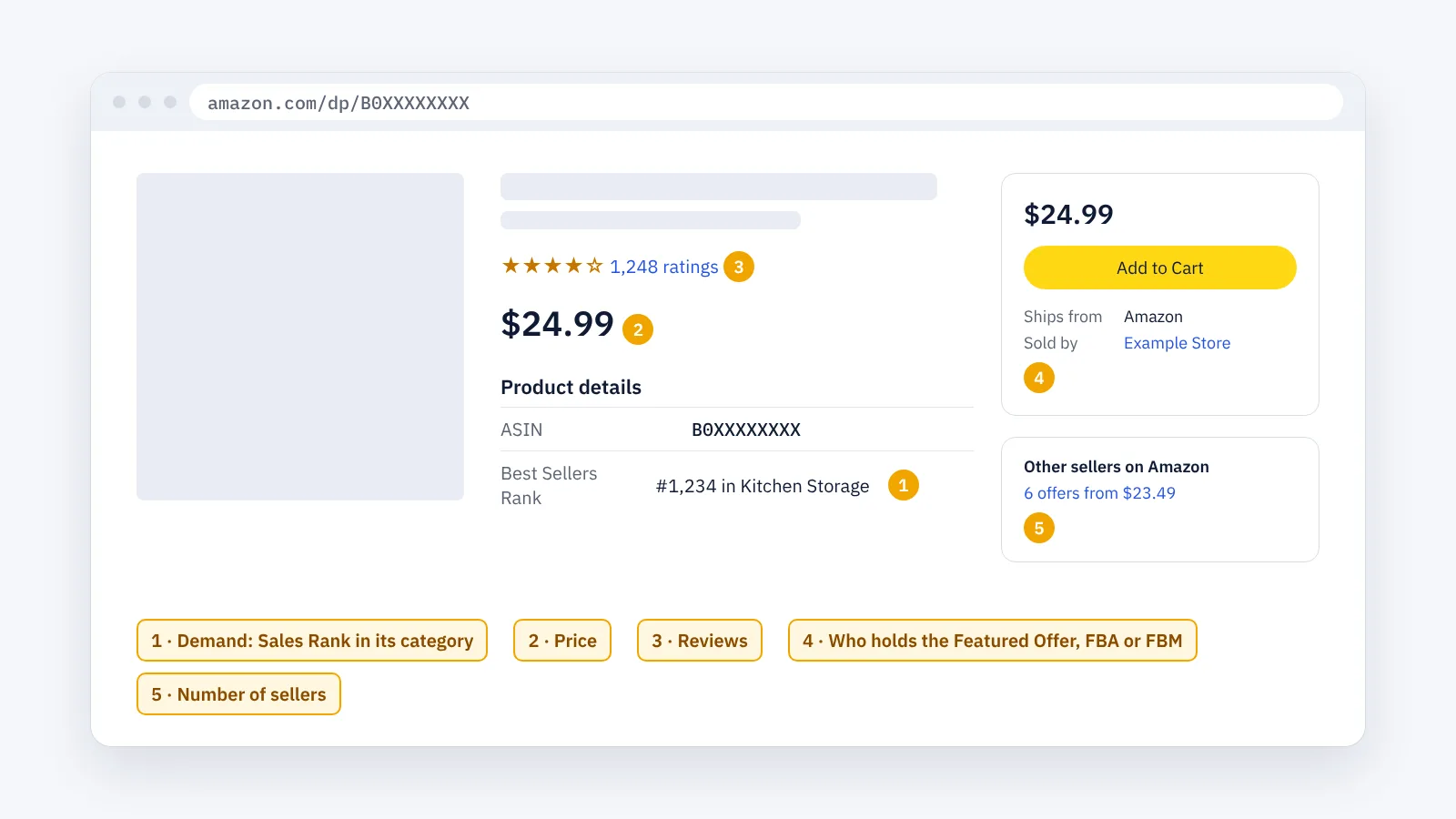
No. The product page looks the same for everyone. Only Seller Central shows whether you can sell it.